News4 min
Your booking page, with images: one photo per session type and per package
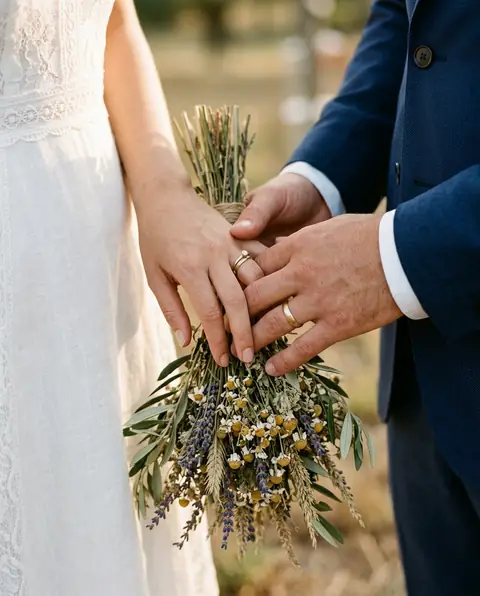
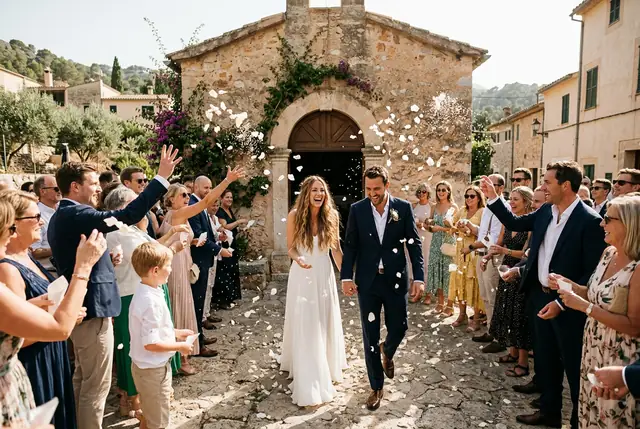
Every session type and every package can have its own photo, and the cards on your booking page show at a glance what your client needs to choose.
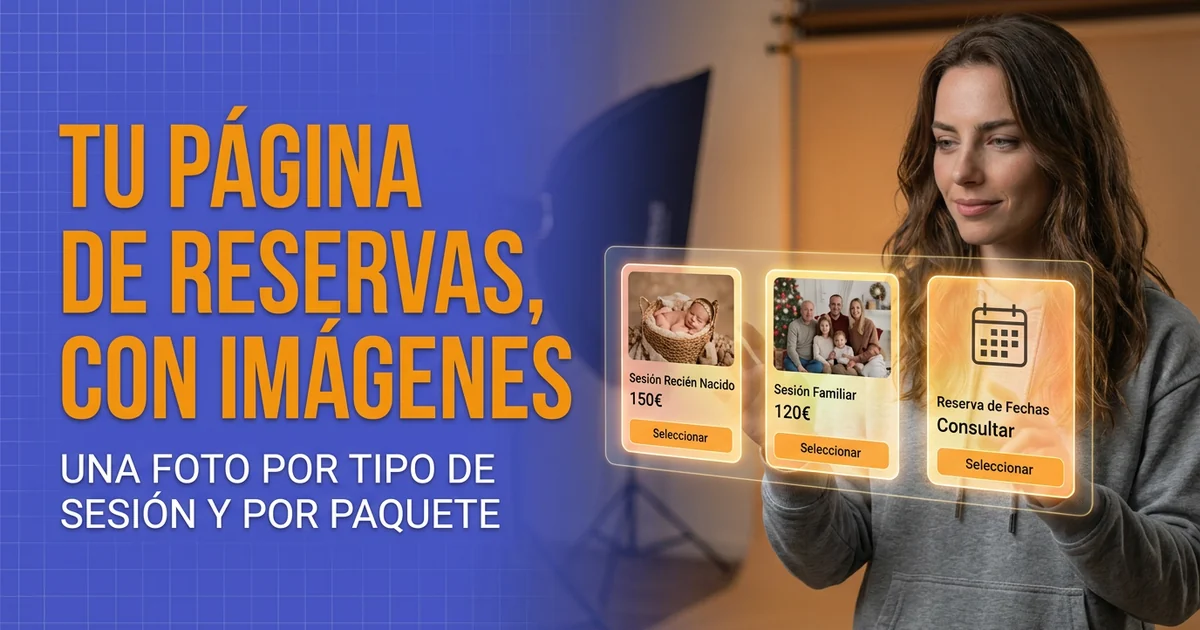
You sell something people judge with their eyes, yet until now the first step of your booking page was just text: name, description, duration and price on each card. "Family session", "Newborn", "Christmas in the studio": your client had to imagine each one.
From now on every session type can have its own photo, and the cards show at a glance what your client needs to choose.
A photo for each session type
The editor of each calendar has a new field, Image. It is optional: pick a JPEG, PNG or WEBP photo of up to 5 MB, check the preview and save.
The same field appears when you create the calendar from the package wizard, in the Calendar → Create new calendar step.
The card shows the image in a landscape box with a 3:2 ratio, the same one you see in the editor preview. If you upload a portrait photo, it is cropped to fill the box: choose a landscape one or one with the subject centered.
And another for each package and each level
Packages could already have an image, although we had not told you. In a package's editor, the Sample image field sits in the package details and also in each of its levels. It takes the same formats and the same 5 MB limit.
A level without its own image uses the base package's one. If your "Basic", "Complete" and "Premium" levels are the same session with more or fewer photos, one image on the package is enough; if each level includes something different, such as an album, you can give each one its own.
These images show in the step for choosing a package, which only appears when there is more than one package or a package with levels.
14 days free. We ask for a card, but nothing is charged until the trial ends.
What the card shows
The session type card shows only the details that exist, and two of them are new: the deposit and the dates. If a detail does not apply, there is no gap and no "not included":
- Price. If the session type has a single package without levels, its price. If there are several options, you see "from" and the lowest price across packages and levels.
- Duration of the session, in minutes.
- Deposit required, with its amount, if you charge a deposit.
- Includes N appointments, when all its packages include the same number of appointments and it is more than one. If they differ, the number appears when the client picks a package.
- Sessions from X to Y, if you limited the dates on which sessions can take place.
The package card follows the same rule: if a level includes no products, "No additional products" no longer appears.
Cards that line up
The cards are centered, up to three per row on desktop and one on mobile, also when the last row is incomplete. Cards in the same row share the same height, and the Select button always sits at the bottom, aligned across the row.
You don't have to add photos to everything at once. If any card in the list has an image, the ones without it show a box of the same size with an icon instead (a calendar for session types, a package for packages), and the same happens if an image fails to load. If none has an image, the cards stay compact and don't reserve that space.
All of this works the same in both public page styles, PhotoHeart and Editorial. In Editorial, the box without a photo takes on the paper tone.
Good to know
- One image per item. Each session type, each package and each level has one at most; there is no carousel or multi-photo gallery.
- Where it shows. On your public booking page: in the step for choosing a session type and, when there is something to choose (more than one package, or a package with levels), in the step for choosing a package. With a single package without levels that step doesn't appear; in that case, put the photo on the calendar.
How to try it
For the session type, go to Settings → Calendar, open a calendar, upload a photo in Image and save. For packages and levels, go to Catalog → Packages, edit a package with levels, or one from a session type with several packages, and use Sample image on the package or on each level. Then open your booking page and see how it looks.