
News4 min
Request details from a whole class with a single group link
Create a group link, share it with the parents of a class and each family fills in their details from it. You review them one by one, and only the ones you accept go into your CRM.
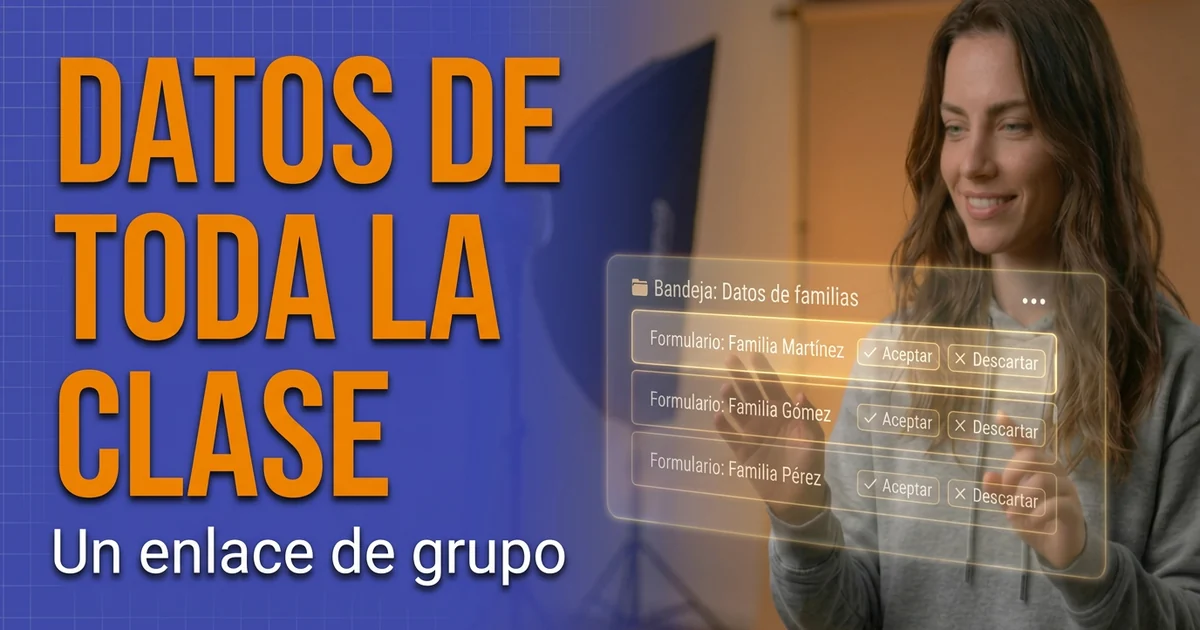
You get hired to photograph a class. Your contact is the teacher, and chances are you have neither the names nor the emails of the families. Asking for them one by one, waiting for replies and typing them into the CRM is work nobody wants to do for thirty records.
Now you can create a group link, send it to the teacher or to the parents' WhatsApp group, and let each family fill in their details on their own.
One link for the whole group
Go to Settings → Clients, find Group links and click New group link. It asks for four things:
- Link name. For example, "Class 3A".
- Details requested. Each field can be
Don't ask,OptionalorRequired. By default, the name and primary email are requested as required and the mobile as optional. At least one of Tax ID / ID number, primary email or mobile must be required, so duplicates can be detected. The fields can't be changed once the link is created. - Expiry. It's mandatory: you choose until when the link is open.
- Submission limit. The link closes when it reaches that number, between 1 and 1000 (100 by default).
PhotoHeart doesn't send the link for you: you copy the URL and share it on WhatsApp or through whichever channel you prefer. Unlike the single-client link, which is personal and closes after the first submission, the group link isn't tied to any client and stays open until it expires or reaches the limit.
The section comes collapsed: expand it to see the list, with one line per link showing its status, the submissions received out of the limit and the expiry. If a link expires or fills up, you can extend the date or the limit from its window and reactivate it.
What each family sees
Each person opens the link, sees the form with the fields you chose and, if your tax ID is filled in your legal details, the information about how their data is handled. They fill it in and get a confirmation. If the link is full, expired or deactivated, the page says so instead of showing the form.






14 days free. No card required.
Submissions wait in an inbox
Nothing goes into your CRM without your review. Each submission stays pending until you accept or discard it:
- You get an in-app notice, one per link, along the lines of "Details received through “Class 3A”" with the number of new submissions. It doesn't arrive by email.
- While there are submissions to review, the CRM list shows a button with their number next to Export.
- The Pending submissions page groups them by link and shows for each one the day it was sent and the day it will be deleted.
- Accept creates the client record, with the link's name in "How they found you". Discard deletes the submission's data, and it can't be recovered.
- If there are many, select the ones you want and accept or discard them all at once.
A submission marked Duplicate matches another record, or another submission from the same link, by Tax ID / ID number, email or mobile. It's only a flag: review it before accepting it. There are two limits worth knowing: if the Tax ID / ID number is already on another record, the submission can't be accepted (discard it or fix the other record), and submissions can't be edited, so if there's a mistake you fix it in the record once it's accepted.
What happens to the data
Submissions you don't review are deleted automatically 30 days after you receive them. Closing the link, whether by hand, by date or by limit, doesn't delete them: you can keep reviewing them. Discarding a submission doesn't free up a slot in the limit either. Links and their pending submissions are included in the export of your data.
How to get started
- Go to Settings → Clients and find Group links.
- Click New group link, choose the details you want to request, the expiry and the limit, and create the link.
- Copy the URL and send it to the teacher or to the parents' group.
- When submissions arrive, open Pending submissions from the notice or from the CRM button and accept or discard them.