
News4 min
Delivery mode: a gallery to download, with no selection or prices
Some sessions end with the client choosing nothing: they take every photo. With delivery mode, their gallery is only for viewing and downloading.
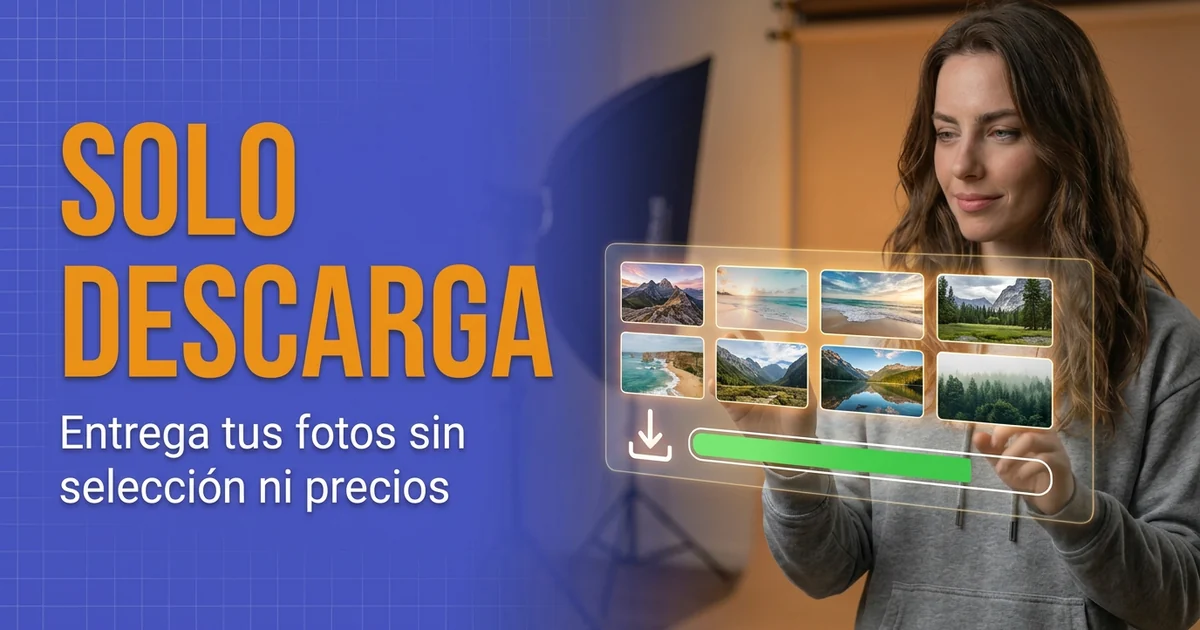
Not every session ends with the client choosing their favorites. At an all-inclusive wedding, a corporate event or a closed reportage, the deal is different: you take the photos, edit them and hand over all of them. Until now, for that you had to use a gallery built for selecting, and turn off what was left over one piece at a time.
From now on a package can work in delivery mode. You assign that package to the session, upload the photos and share the link as usual. Your client opens it, sees the photos and downloads them.
It is turned on in the package
Delivery mode is a package option, not a session option. In the package editor, under Additional configuration, the Delivery mode switch appears as soon as Allow download is on, which in turn requires the watermark to be off.
When you turn it on, PhotoHeart tells you what changes:
- Allow consecutive appointments and the multi-selector are turned off, because delivery mode supports neither.
- The watermark, compression, allow selected downloads after finalization, full gallery selection, included photos, extra photo packs, products and upgrades are locked.
- You can still edit the basic information, the base price (for the booking) and individual downloads.
Locked settings are not deleted: if you turn the mode off one day, the package goes back to that configuration. Consecutive appointments and the multi-selector, however, stay off and you will have to turn them back on.
What your client sees
A clean gallery: the cover, your message, the grid of photos, folders if there are any, and the viewer with zoom. There are no hearts, no selection, no prices, no finalize button, no products, comments or upgrades. Your client does not have to wonder how many photos they have left or whether they are done: there is nothing to finish.
To download:
- Download all saves the whole gallery as a ZIP.
- If you turn on Allow individual downloads in the package, each photo also has its own download button.






14 days free. We ask for a card, but nothing is charged until the trial ends.
The photos, as you upload them
In delivery mode the photos reach your client without a watermark. And the photos you upload to a session that already has a delivery package are not compressed, so what they download is the file you uploaded, at its original resolution.
Compression is decided when each photo is uploaded. Photos you uploaded before assigning the package to the session, or before turning on the mode in the package, stay in their compressed version. That is why it is best to assign the package first and upload afterwards.
Keep in mind that these files take up more space than compressed versions, and they count toward your account's storage.
Your delivery sessions, at a glance
In the Sessions list, sessions that use a delivery package carry the Download only label, both on the cards and in the table. The Selection Status filter has a Download only option to see all of them together.
Good to know
- It is set per package. There is no switch per session: if you want a session to be a delivery session, assign it a package with the mode turned on. In a session with a delivery package, the watermark and download settings in Gallery configuration are disabled, because the package takes precedence.
- A session with a selection does not change package. As soon as your client has a selection in a session, even an empty draft, that package can no longer be changed. It is best to decide that a session will be a delivery session before you share its link.
- Old selections are not lost. If you turn the mode on for a package whose sessions already had selections, those are kept, but they are not shown while the mode stays on.
- The link does not reactivate on its own. Since there is no finalize step, the link does not close for that reason. But if it was already inactive, for example in a session that was finalized before, you will have to reactivate it yourself or turn on Allow view after expiration in Settings → Sessions.
How to try it
Go to Catalog → Packages, edit a package (or create a new one for your deliveries), turn on Allow download and then Delivery mode under Additional configuration. Assign that package to a session, upload the photos, open the gallery link and see what your client will see.