News4 min
Full gallery: copies of any photo without paying for extra photos
With the full gallery, your client chooses the photos in their package and can order copies or prints of any other photo, paying only for the product.
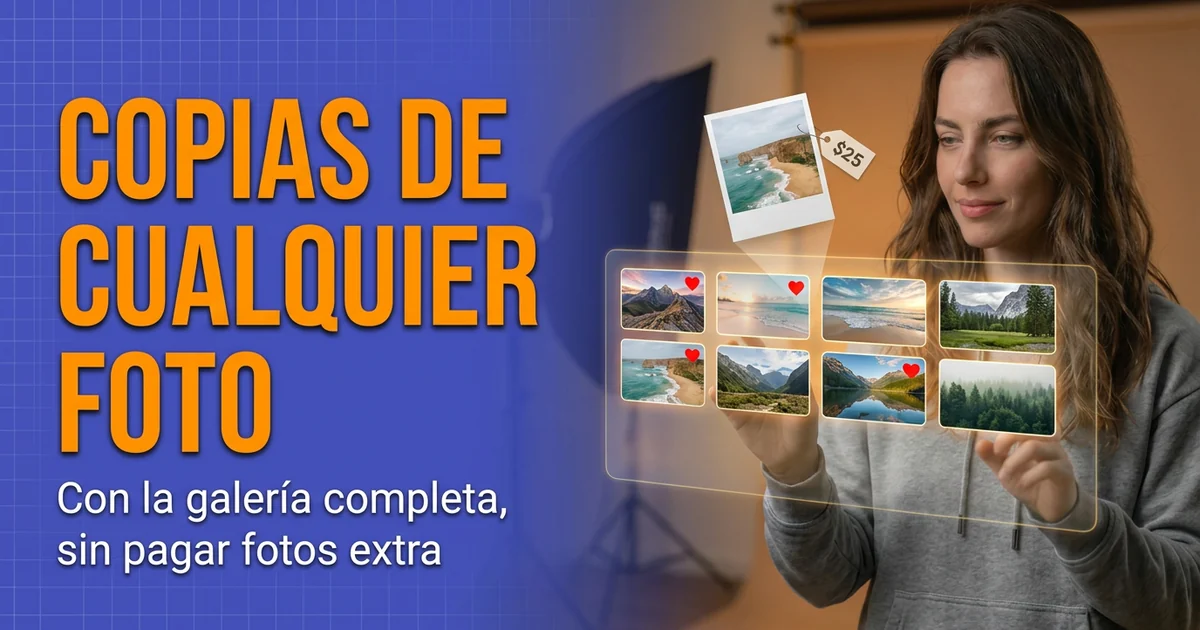
If you work with print packages, this case will sound familiar. A newborn package includes 8 photos: the ones you develop, retouch and print. On top of that, your client buys the full gallery, because they want all the photos in digital form. Then they want a copy of a photo that is not among those 8.
Until now, to order that copy, they had to select the photo. Since it went past the 8 included, it was charged as an extra photo, even though the full gallery had already paid for all the photos. And you received a selection of 9 photos without knowing which one belonged to the package and which one only had a copy.
Now a package can work differently.
An option inside the full gallery
In the package editor, under Additional configuration, when you turn on Allow full gallery selection, the price field for it appears right below, along with a new option: Products on unselected photos. It starts off. If you turn off the full gallery, it turns off too.
With this option on, and only when your client selects the full gallery, the selection changes:
- Your client selects at most the photos the package includes. If they have chosen a higher tier, the photos included in that tier count.
- No extra photos are charged.
- They can order products for any other photo without selecting it, and they pay only for the product.
Products cost the same as on a selected photo. There is no second price.
If your client does not select the full gallery, everything works as before. To order a product, they have to select the photo, and photos beyond the package are charged as extras.
What your client sees
Next to the full gallery option, a note explains that with it they select up to 8 photos for their package and can order products for any other photo without selecting it. When they tick it, the price summary counter shows how many photos they have out of the total, for example 5/8.
When they reach the limit, the next photo is not selected, and a notice appears explaining how to order products for another photo: open it and add them without selecting it. Select all also stops at the limit.
To order a copy of another photo, they open it, go to its products and choose the quantity. Nothing else needs to be pressed: the product is saved automatically. The panel explains it in one line («Saved automatically. This photo doesn't count as a photo of your package: you only pay for the product.») and a notice appears the first time in each visit. If they later decide that photo belongs in their package and there is room left, they select it, and its products move along with it.
Before sending, the review shows the selected photos and, separately, the Products for other photos, with their price.

14 days free. We ask for a card, but nothing is charged until the trial ends.
What you receive
The selection reaches you split into two blocks, so there is no doubt at the lab:
- Package photos to print: the ones your client has selected.
- Products on other photos: each photo with the product it carries. Only the ordered product is prepared.
Both blocks appear in the Selections tab of the session and in the selection PDF. The email your client receives when they complete it also separates the products on other photos, photo by photo. The notice you receive adds how many more photos carry products, and the data export includes them too.
Good to know
- It is turned on per package. That way you decide which packages it works in. The ones you already have do not change until you turn it on.
- No comments on those photos. Comments are only saved on selected photos, so on unselected photos the field appears disabled.
- If your client clears the full gallery, the products on unselected photos are kept, but they cannot finish until they tick it again, select those photos or remove the products. In the meantime, on those photos they can only reduce quantities. If you turn off the option in the package while they are choosing, they will have to select those photos or remove their products.
- It cannot be turned on from the chat. The assistant can check the setting, but to turn it on you have to go to the package editor.
If you offer products in several sizes, How to Add Products and Variants to Your Packages explains how to organize them in your packages.
How to turn it on
Go to Catalog → Packages, edit a package and, under Additional configuration, turn on Allow full gallery selection. Set its price right below and turn on Products on unselected photos. Then open the gallery of a session with that package and select the full gallery to see what your client will see.